Open FarmerPad on your phone or the web app and select Sign up. Enter the details requested by the form, such as your name, username, email and password.
Use an email address you can access. Open the verification email and follow the link. If you cannot find it, check your spam folder and request another email from the verification screen.
Sign in with your details. If you choose Google or Apple, use the same option and the same account on every device to see the same data.
To access FarmerPad from a computer, open its /app/ page. You can read this guide without signing in.
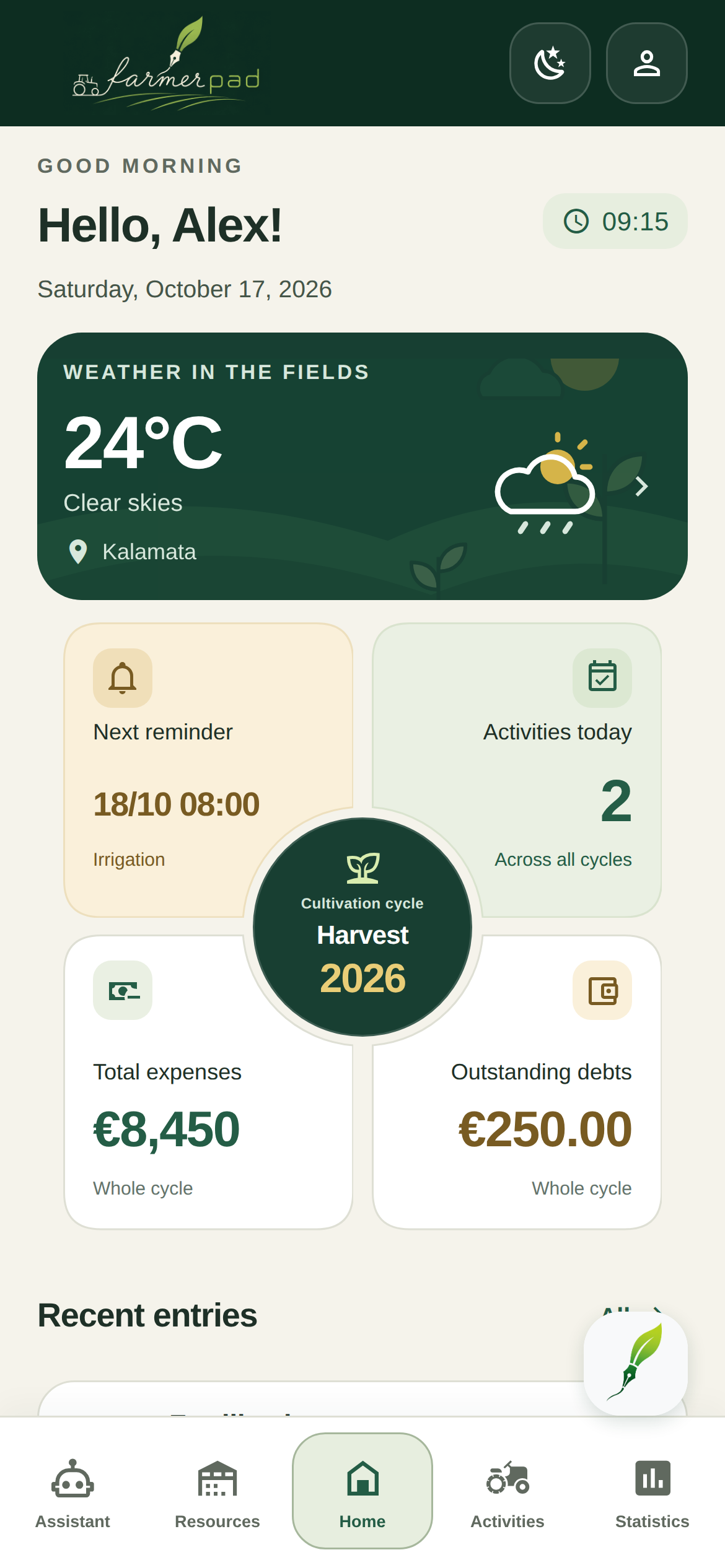
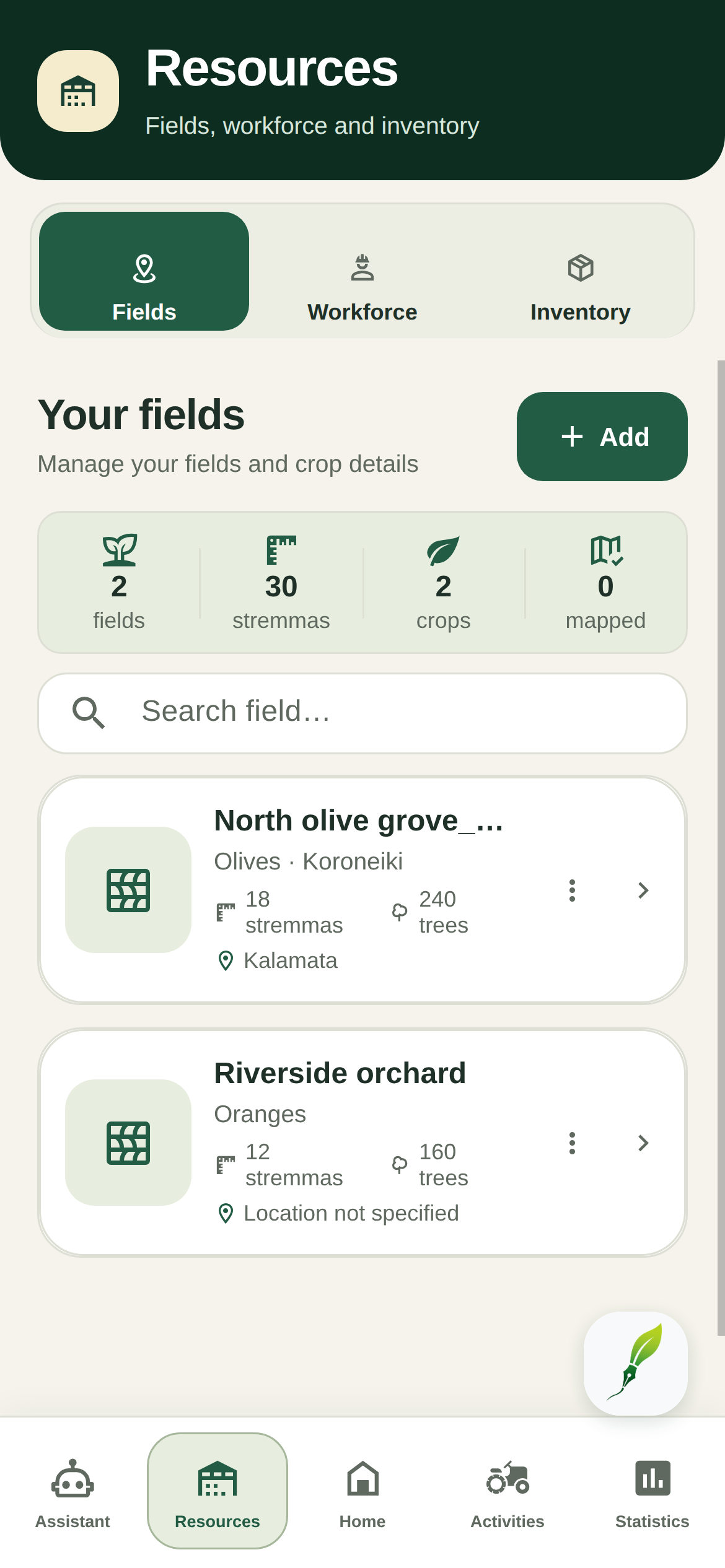
On mobile, the main tabs are Home, Activities, Resources, Statistics and the AI assistant. Resources brings together fields, workers and inventory. The profile icon is on Home.
The + button opens the creation menu: Activity, Debt repayment, Reminder and Note. First choose what you want to record, then type or dictate the content.
On the web, use the sidebar for Overview, Activities, Fields, Workers, Inventory, Weather, Growing cycles and Statistics. On a small screen, open the menu using the button in the top bar.
02
Home and your daily overview
Start your day with an overview of your farm: cycle, fields, activities, finances, next reminder and weather.
Overview shows the active cycle, fields and area, today’s activities, the financial balance, debts, weather and recent records. The 12-month activity summary covers a different period from today’s activities.
Open a recent activity or reminder to see its details. Use Refresh in the top bar to load the latest changes from your phone.
03
Fields, maps and KAEK
A field connects its crop, area, activities, expenses and local weather. Giving it a precise name also helps speech recognition.
Open field creation on mobile or edit an existing field. Expand the map section.
Search for a village, road or nearby landmark. Move and zoom the map until you find the plot. Your device’s location can help you find it, but does not define its boundaries.
Enable drawing and place at least three points around the perimeter. Follow the boundary in order so the sides do not cross.
Use Undo to remove the last incorrect point or Clear to start again. Pause drawing when you need to move the map.
Check the outline and calculated area, then save the field. On a small screen, you can open the map in full screen.
Cycle management lists active, inactive and closed cycles. Edit an existing cycle to change its details and field assignments. Activate the cycle you are currently working in.
When the season ends, close the cycle. You can then review its summary, activity and note history, and PDF report.
Deleting a cycle is a different action from closing it. Deletion removes the cycle from the list, while existing activities and notes are not deleted. Prefer closing a cycle to keep your history organised.
EXAMPLE
The ‘Olives 2025–2026’ cycle has ended. Close it and create ‘Olives 2026–2027’ on mobile.
What to check: The previous season remains available for review, while new records are linked to the new cycle when it is selected.
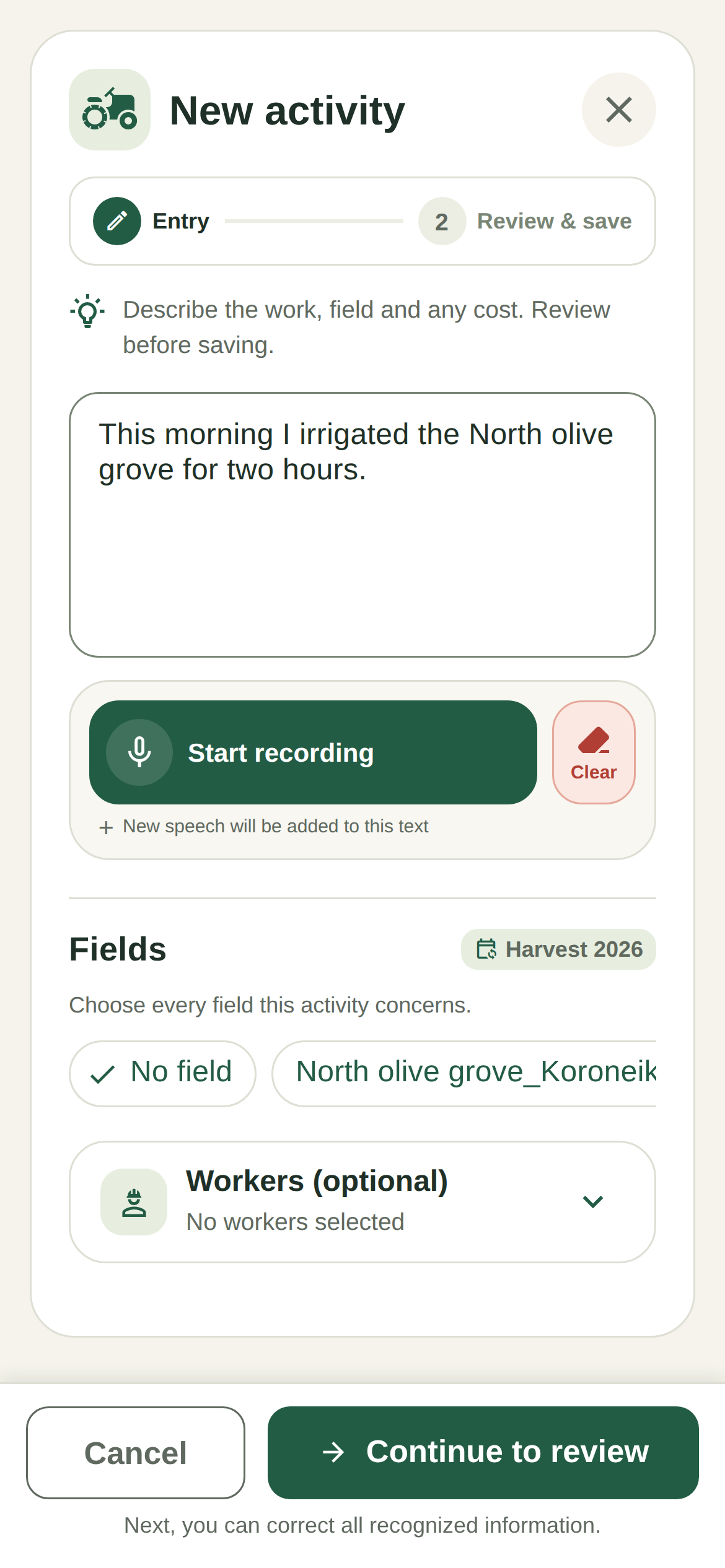
Tap + and choose the correct type, such as Activity. Tap the microphone inside the form.
Allow microphone and speech recognition access when asked. Speak clearly in a quiet place, using the field name exactly as you saved it.
Say what happened, when, in which field, with whom and at what cost. Stop dictation and read the text. You can correct any word by typing.
Tap Continue to review. Allow AI processing when asked if you want to use this feature.
Check the fields, cycle, activity type, date, workers, time, amounts and payment status. Tap Activity category to choose another category and subcategory before saving. You can also change the expense category and other available fields.
Tap Save and wait for confirmation. Then open the entry in Activities for a final check.
EXAMPLE
Today I irrigated the North olive grove from eight to ten in the morning. I paid 25 euros for irrigation.
What to check: Check that irrigation was recognised for the correct field, with today’s date, times of 08:00–10:00 and a paid expense of €25. Correct any differences before saving.
Include the full field name, amount and unit. ‘I put in twenty’ is unclear; ‘I used 20 kilograms of the fertiliser from inventory in the North olive grove’ gives clear context.
For earlier work, give a specific date. For expenses, say whether they were paid or are owed, and to whom. For times, specify morning or afternoon where needed.
The same form accepts typed text. You do not need to use the microphone for FarmerPad to organise an entry from your text.
EXAMPLE
On 7 October 2026, Nikos pruned the Lower field from 08:00 to 13:00. His fee was 80 euros and is still owed to Nikos.
What to check: The preview should show pruning, the specific field and worker, the correct date, 300 minutes of work and an unpaid expense of €80.
Describe activities in separate, clear sentences. Avoid linking different amounts in an unclear way.
During review, read each recognised entry separately. Check how many entries there are and which activity each amount belongs to.
Remove unwanted entries from the preview, or use Back to change the original text. Save after checking every entry.
EXAMPLE
Today I irrigated the North olive grove for two hours. Yesterday I bought fuel for 40 euros and paid for it.
What to check: Check whether two separate entries were created: irrigation with today’s date and a fuel purchase with yesterday’s date. The amount should not be added to both.
06
Tasks and activities
Record irrigation, fertilisation, crop protection, harvesting, pruning, sowing and other tasks, including time, assignments and financial details.
Check the recognised activity category and subcategory. Tap Activity category, search for or select the correct category, then its subcategory where available. Change each preview entry separately. If you change the activity type, recheck any fertilisation and inventory use details. The activity category is different from the expense category.
Enter a description and the correct date. Check the cycle and select all fields involved in this activity.
Assign workers if applicable. You can leave an activity without a worker if it does not involve anyone in your list.
Add a start time, end time or duration in minutes. Check the duration calculated from the times.
Where there are financial details, check the amount, expense category, payment and payee. For a sale, check the income field.
If the workers are not recognised correctly, select them in the assignments. If they are not in your list yet, add them through Resources → Workers and check the entry.
EXAMPLE
On 8 October 2026, we harvested the North olive grove with Nikos and Maria from 08:00 to 14:00. The total labour cost was 160 euros, paid.
What to check: Check the harvesting category, field, two workers, duration of 360 minutes and total expense of €160. The total should not become €160 for each worker.
Open Activities and search for a word in the description. Start with a distinctive word, such as ‘pruning’.
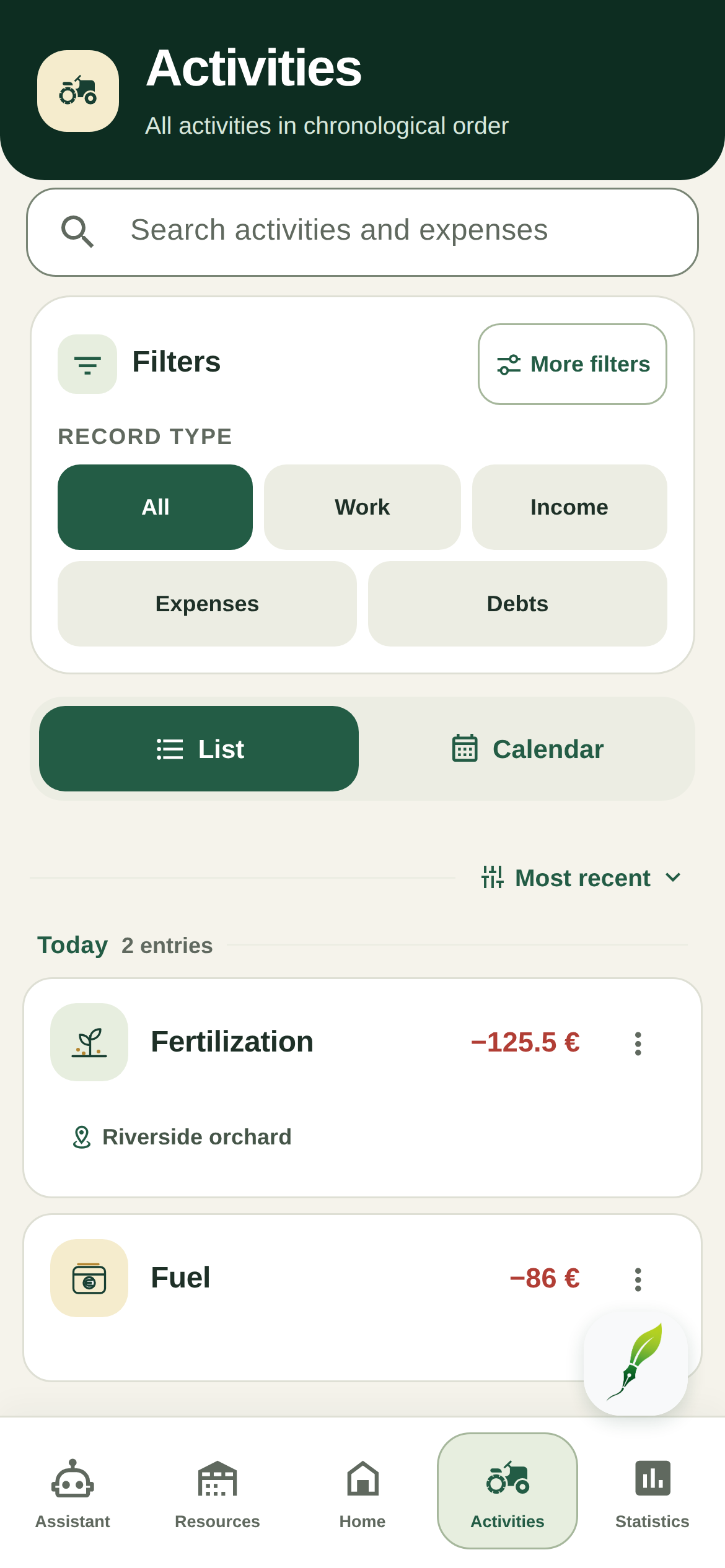
Limit the list to a cycle or field. On mobile, also choose All, Tasks, Income, Expenses or Debts, depending on what you need.
Use category, subcategory, worker, payment status and date filters where they appear in the filter form.
If there are many entries, go to subsequent pages or load more from the list. For a new search, remove filters you no longer need.
EXAMPLE
You want Nikos’s unpaid activities in the North olive grove for October.
What to check: Select Debts, Nikos, North olive grove and the period 1–31 October. If there are no results, remove one filter at a time to find what is restricting the search.
Go to the month you need and select a day. Date markers indicate activities, notes or reminders.
Read the entries for the selected day and tap one for details. For a scheduled activity, check whether it is waiting for completion confirmation.
Use search and filters for a specific cycle, field or type. If a day looks empty, check the active filters and month.
08
Expenses and splitting costs across fields
An expense amount describes the record’s total cost. Its category shows what was purchased or paid for, while payment status shows whether a debt remains.
Tap + → Activity and describe the purchase or expense. An expense does not have to involve a farming task.
In the preview, enter the total amount and choose the appropriate expense category and subcategory.
Select a cycle and field if the expense concerns them. For a general expense, leave the field assignment empty.
Set Paid if it has been settled, or Debt if it is outstanding. For a debt, enter the payee and check it is the correct person or supplier.
EXAMPLE
Today I bought fuel for farming work for 50 euros and paid for it.
What to check: Check an expense of €50, the fuel category and paid status. If it does not concern a specific field, keep the entry as a general expense.
Record the total expense once and select all the fields it concerns.
Check the area-based expense split section. Each selected field needs a valid, positive area to split the new entry’s expense.
Read the amounts per field before saving. Do not repeat the same total expense in a separate activity for each field.
EXAMPLE
A shared task cost €300. It concerns the North olive grove of 10 stremma and the Lower field of 20 stremma.
What to check: With an area-based split, €100 is assigned to the first field and €200 to the second. The total expense stays €300, without double charging.
Fertilising a field is a task. Buying fertiliser is a supply purchase. Settling an already recorded debt is a repayment. These records describe different events.
If you recorded the cost when purchasing a product, do not add it again simply because you used the product. For use, record the actual quantity and only any separate additional cost, such as labour.
If you are settling a debt, use Debt repayment on mobile. Creating a new expense for the same amount would count the cost a second time.
09
Sales and income
Sales update revenue and the balance. Check that the amount is recorded as income and belongs to the correct cycle.
Choose + → Activity and clearly describe the product you sold and the total income.
In the preview, check the Sales section and income field. Assign the cycle and field the sale concerns, where relevant.
Save and find the entry in Activities using the Income view. In Statistics, check revenue and the balance for the same data range.
EXAMPLE
Today I sold 300 kilograms of olive oil from the North olive grove. The total income was 1,800 euros.
What to check: Check income of €1,800 on the correct date and in the right period. The 300 kilograms describe the sale; €1,800 is the amount that increases revenue.
Revenue is the total recorded income for the selected range. The balance compares income and expenses within the same selection.
Before comparing two screens, check the cycle, field and filters. A whole-farm view and a view of a single field are not expected to show the same amounts.
EXAMPLE
In the same cycle, you have income of €1,800 and expenses of €1,200.
What to check: The balance is +€600. Check separately how much of the expenses has been paid and how much remains owed.
10
Debts, partial payments and settlement
Track whom you owe, which entries make up the balance and how much has already been paid.
Tap + → Debt repayment. Select the payee from the suggestions or state their name clearly.
Type or dictate the amount you paid and the date. If there are several debts, check the entries proposed for updating.
In the preview, read the number of entries, total debt, payment amount and balance that will remain.
Confirm the action. Then open Statistics or the relevant activities and check that payment status was updated.
EXAMPLE
Today I paid 50 euros towards the 120 euros I owe Nikos.
What to check: Check that €50 is being paid and €70 remains. The original expense stays €120 and the status becomes partially paid.
11
Storage and supply inventory
Organise fertilisers, crop protection products, seeds and planting material. Recorded purchases and uses update quantities when linked to the correct product.
Create an Activity and describe the purchase, quantity, product and total cost.
During review, link the purchase to the correct inventory product and check that the movement is Purchase. For a new fertiliser, check the product details proposed for creation.
Confirm the unit, quantity, cost, cycle and payment or debt to the supplier.
Save and open inventory to check the new available balance. Also check that the cost was recorded once.
EXAMPLE
I bought 100 kilograms of the 20-20-20 fertiliser in inventory for a total of 80 euros, paid.
What to check: If previous stock was 50 kg, expect 150 kg after the confirmed purchase, and one expense of €80.
Search for a product by name, company, composition, variety or batch, and filter the list by category. Check its expiry date and storage location when shown on the card.
Open Edit to correct details or the actual available quantity after a stocktake. A quantity correction does not itself record a new purchase, and earlier purchases and uses remain in the history.
On the web, you can view and edit existing products. Archiving, where offered, is for products with zero stock. Create products and record new movements on mobile.
12
Fertilisation and application details
Record the trade name, company, composition and dose. Distinguish the dose per stremma from the total quantity removed from inventory.
Create an Activity with a clear description of the fertilisation and select the fields it concerns.
In the fertilisation section, select a product from inventory or use the available trade name, company and composition options.
Check the dose and its specific unit: kg/stremma, L/stremma, g/stremma or ml/stremma. The dose unit is explicitly labelled and does not change when you select a different area unit in your profile.
If you link inventory use, also check the total product quantity. Enter time, workers and any additional expense, then save.
EXAMPLE
Fertiliser was applied to 10 stremma at a dose of 2 kg/stremma. The total product quantity was 20 kg.
What to check: Check 2 kg/stremma in the dose and 20 kg in inventory use. The value 2 is not the total quantity used.
Open the entry from the calendar to review or change the note and reminder date. Use the available edit action instead of keeping two identical reminders.
Saving a reminder and granting device notification permission are different things. If you did not receive a notification, check Device settings → FarmerPad → Notifications and the correct date and time.
Receiving a notification does not confirm a task’s completion. If you did the work, record the activity or complete its scheduled entry.
15
Field weather and cycle history
Conditions are linked to a field’s location. Check the forecast, history and data coverage before interpreting the indicators.
Open Statistics and select the cycle or overall view you need. Check any field filter.
Review Total expenses, Revenue and Balance. Read paid expenses and debts separately.
Check cost per area unit. Correctly recorded areas are needed for a useful comparison.
Where cards are interactive, tap total expenses, paid expenses or debts to see the corresponding activities.
EXAMPLE
Expenses of €1,200, including €900 paid and €300 owed. Income of €1,800.
What to check: Revenue is €1,800 and the balance is +€600. At the same time, €300 remains to be paid. The debt is part of expenses, not an additional new expense.
In the assistant, choose to add a photo from your camera or gallery. Allow the relevant access when asked.
Choose a clear, well-lit photo and check its preview. If it is not the right one, remove it and choose another.
Add text with the crop, field, what you have observed and when it started. The image alone may not explain the situation.
Send the question and read the observations and any uncertainties in the answer. Continue with additional information if needed.
EXAMPLE
I noticed these marks on leaves of an olive tree in the North olive grove three days ago. What is visible in the photo, and what further information is needed?
What to check: The assistant uses the image and text to answer. The answer does not automatically save an application or treatment in your activity history.
In your profile, you can change the language, area unit and displayed currency. The same choices also appear during initial setup.
Area can be displayed in stremma, hectares or acres. One stremma is 1,000 m²; for example, 1.5 hectares equals 15 stremma. Always check the current unit before entering an area.
EUR, USD and GBP options change currency labels. They do not convert exchange rates or change the value of amounts already saved.
These preferences are saved on the device. You may need to choose them separately on another device, and they do not necessarily change the units or wording in a PDF report.
EXAMPLE
An entry has an amount of 100. You change the label from EUR to USD.
What to check: The same numerical amount is displayed with the selected label. The app does not calculate how many dollars equal 100 euros.
Before using AI features, the app asks for permission to send text, selected photos and relevant farm data to OpenAI. This context may include locations, activities, finances and worker details.
Read the explanation before choosing. In Profile → Privacy and account, you can open the privacy policy and use Reset AI consent to change your choice.
Consent is saved on the device. Changing it affects the use of AI features and does not itself delete your farm records.
If you forgot your password, choose Forgot password on the sign-in screen. Request a reset email and follow its link to set a new password.
For Apple or Google accounts, use the same sign-in option. If you cannot sign in, contact support.
Use Sign out to end your session on the device. Signing out does not delete your account.
To delete an account on mobile, open Profile → Privacy and account → Delete account and read the confirmations. The web also has a public help page at /delete-account/.
20
Mobile and web: where to do what
Use your phone to record work in the field and your computer to review and manage it. Farm data is linked to the same account.
Synchronisation happens through your account. Wait for save confirmation on the device where you made the change, then refresh the other device.
Reviewing and saving through +, AI questions, PDF downloads and loading weather require an internet connection. If the connection is lost, text may remain in the form for another attempt while the form stays open. Do not assume it was saved without confirmation.
If a pending local records section appears, read the message and use Retry sync when connected. This indicator does not mean every feature can be used offline.
In the current version, the separate Planning tab and automatic growing plan creation are disabled. You will not find an active button for creating these plans.
You can use the calendar inside Activities on mobile, create notes and reminders through + and view existing entries. Growing cycle management remains available.
Missing buttons do not mean your earlier data was lost. Creating a cycle, recording an activity and generating an automatic plan are different features.
Key features by device
Feature
Mobile
Web
New tasks, expenses and income
Create and review
View, edit, delete
Voice recording
Dictation in forms
Record on mobile
Fields, workers, products, cycles
Create and manage
Manage existing details
Inventory purchases and use
Record through activities
View and correct products
Debt repayment
Review and confirm payment
View payments and balances
Notes and reminders
Create through +, calendar
Existing linked entries
Calendar
Inside Activities
Separate view is hidden
AI assistant and history
Questions, photos, notes
Questions and conversation history
Weather, statistics and PDFs
View, download and share
View and download
Automatic growing plan
Temporarily unavailable
Temporarily unavailable
21
A complete example of a farming day
Follow one scenario to see how the features connect. Names, quantities and amounts are examples.
On Home, check that the ‘Olives 2026–2027’ cycle is active. The North olive grove measures 10 stremma and belongs to this cycle.
You already have a 20-20-20 product with 50 kg in inventory. Through + → Activity, record a purchase of 100 kg costing €80, paid. Check the Purchase movement; stock becomes 150 kg.
Record fertilisation in the North olive grove with Nikos, from 08:00 to 10:00. Check a dose of 2 kg/stremma, total use of 20 kg and the Use movement for the same product. Stock becomes 130 kg.
Nikos’s fee is €60 and has not been paid. Record it as a labour expense and a debt to Nikos. Do not charge the €80 fertiliser purchase again in the fertilisation activity.
Through + → Note, keep an observation about the irrigation network. Through + → Reminder, ask to check it tomorrow at 09:00.
Later, you pay Nikos €20. In Debt repayment, check the payment and remaining balance of €40 before confirming.
In Statistics, these entries have expenses of €140: a purchase of €80 and labour of €60. Paid amounts are €100 and debts are €40. Product stock is 130 kg.
On your computer, refresh the records, check the activity and cycle summary, and download the PDF report when you want to keep a view of the season.
22
Common problems and solutions
First check the app’s message, connection and filters. Below are practical steps for the most common situations.
In device settings, check that FarmerPad has microphone and speech recognition permission. Confirm the selected language matches the language you are speaking.
Stop dictation, move closer to the microphone and try in a quieter place. Use the field’s exact saved name.
If recognition is unsupported on your device or browser, continue by typing. If the text contains errors, correct them before continuing to review.
Read the form’s message and check your connection. Processing requires an available service and completed AI consent when requested.
If no activity was recognised, add a clear action, field and date. Check for missing required details, positive quantities or areas needed for expense splitting.
Wait for the previous attempt to finish before tapping again. If a weather warning appears, respond to that warning.
If it fails, keep the text and try again when the connection is restored. Check Activities before repeating the whole entry to avoid duplicates.
Check the product and unit. See whether you selected a different product with a similar name or entered a quantity in g instead of kg.
Open the relevant activities and check whether they were linked as Purchase or Use and saved successfully.
Check opening stock, duplicate purchases and manual corrections. Mentioning a product in the text is not enough without the correct link in the preview.
If you completed a physical stocktake and need a correction, edit the available quantity and check the result. Do not create a fictitious purchase just to change the balance.
Contact support@farmerpad.com. Describe what you tried to do, what happened and the exact message displayed.
For mobile, include the device, Android or iOS version and FarmerPad version. For the web, include the browser and device. Do not send your password or sign-in codes.